Show your product table on the woocommerce shop page with the archive override facility

You can replace the default product grid on your woocommerce archive pages—shop, category, attribute, search and tag pages—with any product tables of your choice.

The ‘Archive override’ facility features and benefits

  1. By default woocommerce will show your products in your product archive pages (i.e. shop, search, category, attribute, brand and tag) in a product grid layout. But with the product table plugin’s ‘archive override’ facility you can replace the product grid layout on your woocommerce archive pages with a product table/list layout of your choice. This improved custom layout can be much better for shopping than the default woocommerce grid layout.
  2. You can assign different product tables to different archive pages so that ‘shoes’ category page may have a different table/list layout than ‘songs’ category page or product ‘search’ could have a different layout that the general ‘shop’ page, etc. Or you can simply select one default table layout to be used for displaying products across all the product archive pages.
  3. You don’t have to create new product tables for each product archive page. The product table will automatically show the correct set of products depending on the current archive page when you are using this facility. The same product table will show shoes on the ‘shoes’ category page and pants on the ‘pants’ category page etc. So you only need to create one table for your entire site. But you can choose to build more tables to show completely different table layouts for different product archive pages if you want.
  4. And lastly, you can also leave the default woocommerce product grid on specific archive pages if you don’t want to replace it with a product table on those specific pages.

Configure the ‘Archive Override’ setting to show table/list on product archive pages instead of grid

With WooCommerce Product Table PRO installed on your site, go to:

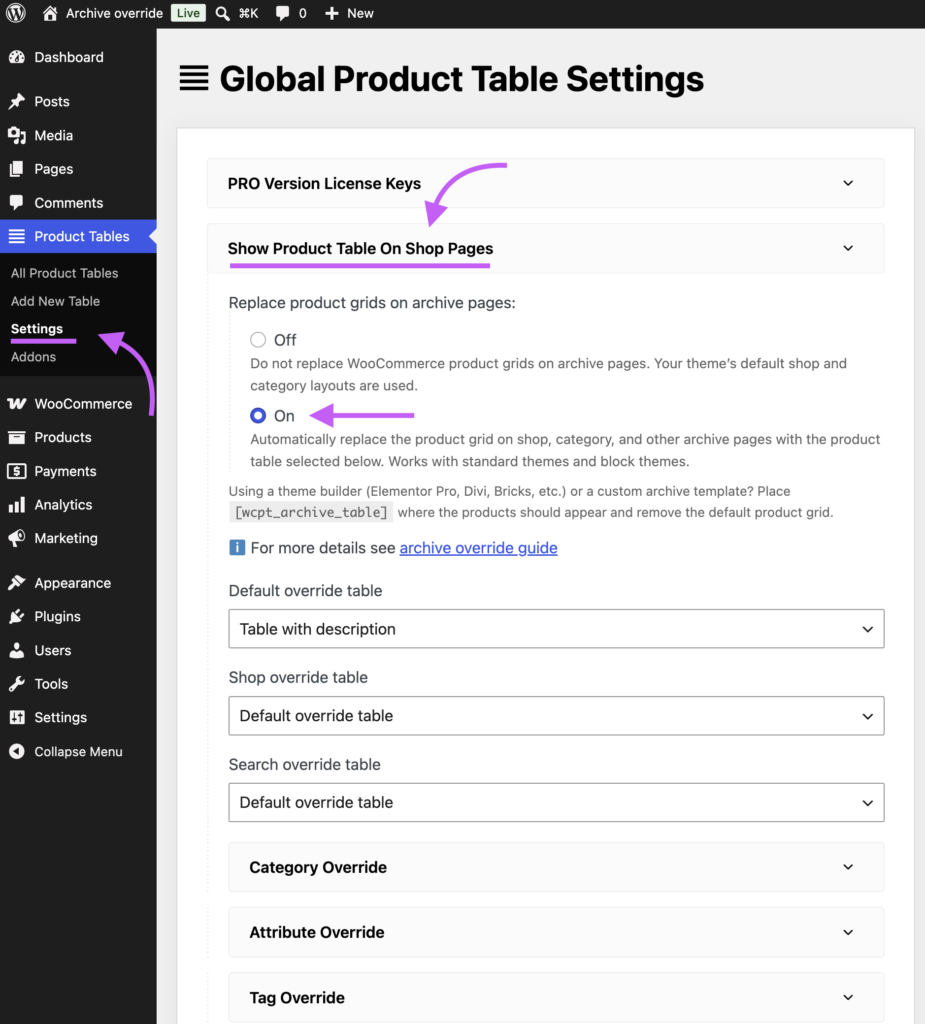
wp admin → product tables → settings → replace shop product grid with table

Here you can conveniently assign product tables to your product archive pages such as shop, search, category etc.

Refer to this setting screenshot for clarity and follow the numbered steps:

Step by step instructions for replacing product grid with tables

  1. Go to wp admin → product tables → settings → the global settings page for the plugin will open up.
  2. On the global settings page open the settings section called ‘Replace shop product grid with table’.
  3. First you select ‘automatic’ or ‘manual’ mode for how the grid → table replacement is done by this facility. See description for the options:
    Automatic method: suitable for most sites if you’re not using any theme builder plugin to take control of your shop, category and other product archive pages.
    Manual method: select this if you are using a theme builder plugin to modify the the shop, category etc templates. You also need to copy paste the shortcode [wcpt_archive_table] in your shop, category, product archive template to show the product table.
  4. In the ‘default override table’ option you can select a table to use across all the product archive pages. If you need to enter a product table shortcode use the second option called *custom shortcode* that will open an input for the custom shortcode. More details on entering custom shortcode are provided lower down in this document.
  5. Now select tables for any of the product archive pages you want ie — shop, search, category, attribute, brand, tags. You can select which table layout appears on which archive page and even skip pages where you want to keep showing the default woocommerce product grid.
  6. For category, attribute, brand and tag product archives pages you can drill down further and select exactly which category, attribute etc pages get which table or make them all use a default table.

Note on using a ‘custom shortcode’ in the archive tables

By default the settings let you select tables from a dropdown for the archive pages. But in some cases you may want to enter the product table shortcode manually to include some shortcode options in it like laptop_sticky_heading="true".

To manually enter the complete shortcode you can select the second option in the table dropdown called *Custom shortcode* and you will get a text area to enter your custom shortcode below. See reference screenshot below:

Note for page builder / theme builder plugins like Elementor, Divi, Beaver Builder etc

If you are using a theme builder plugin like Elementor PRO, Divi builder, Beaver builder, Oxygen, Avada builder, Bricks builder, Visual composer builder to change your shop’s product archive templates then you need to follow these steps:

  1. In the ‘Replace shop product grid with table’ settings section mentioned above select the ‘manual’ option at the very top.
  2. Configure the rest of the settings as described in the guide above.
  3. In your theme builder plugin open your product archive templates like shop, category, search, etc and replace the default woocommerce grid with the shortcode [wcpt_archive_table]. This gives the product table plugin an opportunity to inset table into the theme builder template based on its own settings. Check out this step by step guide for Elementor PRO as a reference —the process work exactly the same for all other theme builder plugins as well.

Provide an option to select variations for variable products in the table

For variable products provide shoppers the option to select variation via dropdowns and radio buttons. You can also show variations in a separate table of their own.

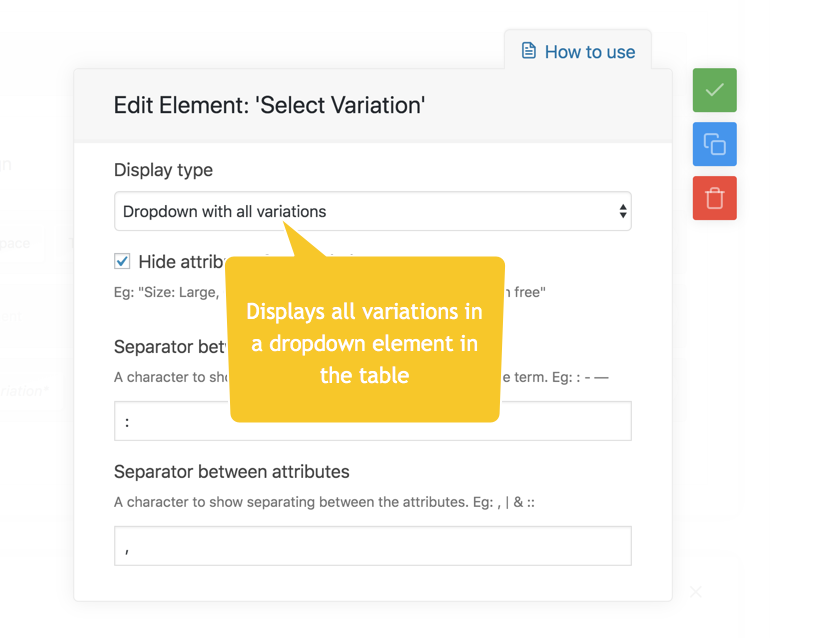
Using the ‘Select Variation’ element in the product table you can give your shoppers the option to select specific variations when purchasing a variable product, right inside the table. There are 3 different ways the product variation options can be displayed and you can choose the display type you require for your table:

  1. Dropdown with all the product variations listed as options
  2. Radio buttons for each of the possible variations
  3. Single radio button for each variation, manually created to be placed in separate columns

Special Note: If you want to show all the variation attribute dropdowns separately like you see on the product page then add the ‘Cart Form’ element in your table. On the other hand the Select Variation element described in this doc provides a single dropdown with variation attribute combined for each variation option.

If you have any difficulty in following along with this tutorial or are unable to achieve the final results you require, please contact me via the support form and I will assist you asap with your requirements. 

1. Dropdown – how to use

 Select the ‘Display type’ to be ‘Dropdown with all variations’

You can modify the variation labels with 3 facilities –

  1. Hide/shop attributes in the name. Eg:
    A. (attribute names displayed) Color: Red, Size: Small
    B. (attribute names hidden) Red, Small
  2. Change the separator between attribute name and terms to any valid character. Eg:
    A. (using : ) Color: Red, Size: Small
    B. (using :: ) Color :: Red, Size :: Small
    C. (using – ) Color – Red, Size – Small, etc
  3. Change the separator between attributes to any valid character. Eg:
    A. (using /) Color: Red / Size: Small
    B. (using ,) Color: Red, Size: Small
    C. (using ||) Color: Red || Size: Small

2. Radio buttons – how to use

Note: Normally the radio buttons will attempt to display horizontally. However, you can give the column a fixed narrow width to force the options to display in a vertical column as above.

3. Single radio button – how to use

The following steps are illustrated in the screenshots below. Please follow along the highlighted sequence of steps in the screenshot.

  1. Each ‘Select variation’ element is going to represent a single variation. Give this variation a name. For example ‘Small’. This name will be used by the table editor to represent this variation in the editor > column. 
  2. Select the attributes and terms to that are part of this variation. The plugin will look through the product variations and find the closest match to these attribute – terms.
  3. Use the ‘Add another’ button to add more attribute – terms to the list of properties of the variation if required.
  4. A default template for the element is auto-created. You can modify this template to include images, icons, remove the name, etc. However keep in mind the ‘Select’ element must remain somewhere in the template to ensure the variation is selectable. This select element creates the radio button.


Single radio button – usage example

In the example below the column 2 in the table is made to show a product variation with Serving size (attribute): Small (term).