
Sometimes when people first start using our woocommerce product table and list builder plugin, they are tempted to create a whole lot of new tables/lists. One for every different layout or set of woocommerce products they wish to show on their site.
While it works at first it can become difficult to manage several table/list layouts on your site.
You end up with:
- Too many tables to create
- Too much repetitive work
- More maintenance than necessary
The important thing to know is:
💡 You don’t really need to create that many tables for your site!
In most cases, even on large e-commerce sites you can get away with creating just one or two well-designed tables and reuse them across your site with smart tweaks.
Below we’ll cover a few simple but powerful facilities that will help you easily re-use your existing product tables to printing different sets of products and relevant columns on different pages of your site.
1. Use shortcode options to tweak what the table will show
This is probably the easiest and most powerful trick you need to know.
Instead of creating a new table every time you want to show a different set of products you can simply reuse an existing table and just tweak its product query settings via the shortcode itself.
We provide dozens of shortcode options to modify the table’s product query including category, attributes, sku, stock availability, tags, etc.
For example, let’s say you already have a table and its shortcode looks like this:
[product_table id="11078"]
Now instead of creating new tables, you can do things like:
[product_table id="11078" category="electronics"]
[product_table id="11078" attribute="color: red"]
Notice in the above shortcodes we’re using the same table ID but we’re adding category and attribute shortcode options to change the products that will be displayed in these tables.
So as you can imagine we don’t need to create a new product table/list just to show products that have specific categories, attributes, tags, skus, etc.
If you’re not already using the table’s shortcode options, you’re probably creating way more tables than you need!
You can read more about shortcode option in this dedicated doc:
https://wcproducttable.com/documentation/shortcode-attribute
2. You can automatically show tables on shop, category and other woocommerce archive pages
If you’re manually placing tables on your shop pages, category pages, search pages, etc… you’re doing unnecessary extra work.
Our plugin has an ‘Archive override‘ feature that handles all of this automatically for you.
Once enabled, it replaces the default WooCommerce layouts with your table on:
- Shop page
- Category pages
- Tag pages
- Search results
- Attribute pages
So instead of managing tables across multiple woocommerce pages, you just configure this facility at once location and let the plugin handle the rest.
See the archive override setup guide here:
https://wcproducttable.com/documentation/enable-archive-override
3. Create one ‘template table’ and reuse it everywhere
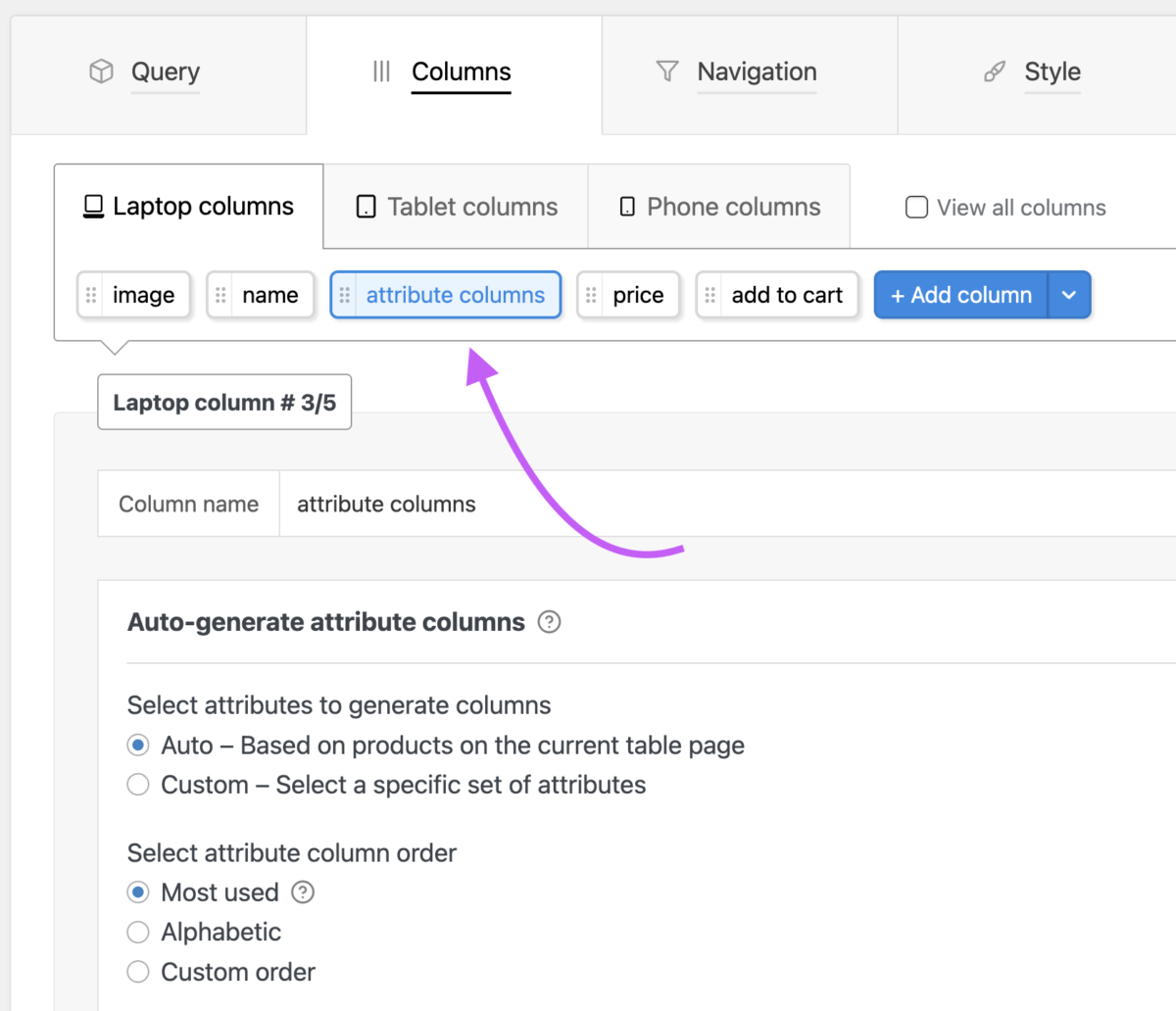
You can create a flexible ‘template table’ that is capable of automatically changing its column to match the products that you make it show.
We’ve already covered how you can use the plugin’s included shortcode options to modify the table query and print different groups of products without needing to create new tables.
But each set of products may have unique properties such as attributes or meta data that are mutually exclusive.
For example let’s say a shop sells both ‘books’ and ‘pens’. And they wish to show these products in separate tables on their woocommerce site.
They want to re-use the same product table on 2 separate pages to show books on one page and pens on the other.
Obviously the 2 product tables are expected to show different set of columns based on the products being display. In the product table displaying ‘books’, they’ll want to show columns for book author, number of pages, first-publication date, etc. While in the ‘pens’ table they’ll want to show columns with color, nib thickness, weight, etc.
Problem: We already know how to re-use the same product table to print these separate sets of products by using the shortcode option category=”books” on one page and category=”pens” on the other. But how would be make the two tables show only relevant set of columns based on their product category?
Solution: Our plugin provides a couple of interesting facilities to help you create a template table that can be used to display both these sets of products:
- Automatic attribute column generator: This is a special type of column you can add to your table which will automatically generate attribute columns that are relevant to the current set of products. So, in the table displaying books it will only print attribute columns relevant to that category (author, number of pages, etc) while in the pens table it will generate an entirely different set of attribute columns (color, nib thickness, etc).
- Automatically hide empty columns: When this facility is enabled in your table any empty columns are automatically hidden. So you can create a table with mixed group of columns that are relevant to products from either of the two categories pens and books. And the facility will automatically hide empty columns that are not relevant to the current set of products.
Final note
Just to be clear there’s no restriction on how many tables/lists you can create on your site using our woocommerce product table and list builder plugin.
But in practice, fewer tables means less work building and maintaining them. So we highly recommend using these time-saver facilities for your benefit.
Once you get comfortable with shortcode options and these features, you’ll rarely need to create new tables again.